

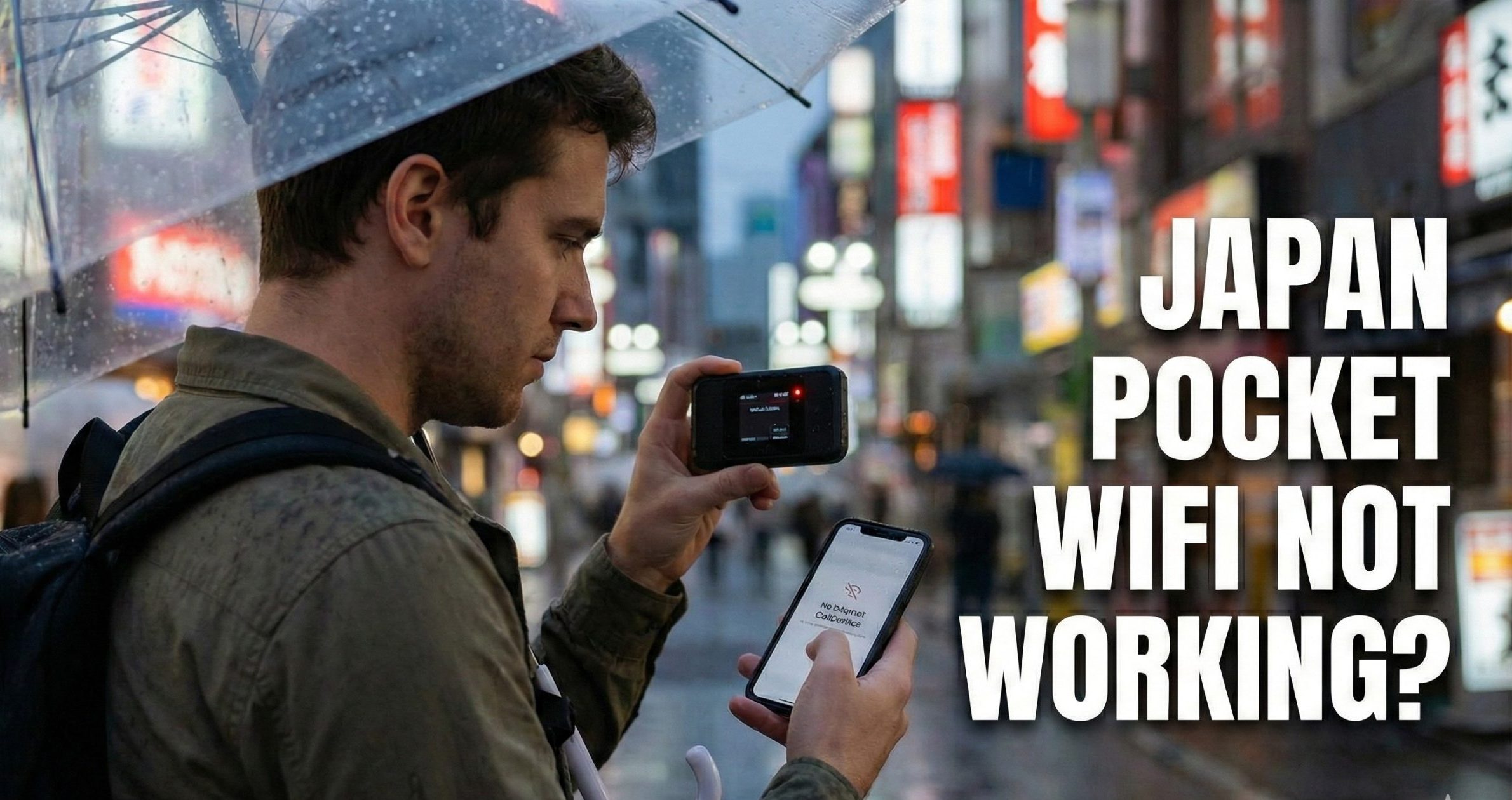
There is nothing worse than stepping off the Shinkansen, trying to load Google Maps to find your hotel, and seeing that spinning loading wheel of death.
If your rental Pocket WiFi is acting weird—or just flat-out refusing to connect—don’t panic. Before you spend an hour on hold with customer support, try these real-world fixes.
The “It Just Happened” Fixes
If you were online five minutes ago and now you aren’t, it’s usually a tower handover issue.
1. The “Tower Handshake” (Airplane Mode) When you move quickly—like on a bullet train or a subway—your device tries to hold onto the cell tower you left rather than the one you’re near.
- The Fix: Don’t restart the router yet. Instead, toggle Airplane Mode ON on your phone. Count to 5. Turn it OFF.
- Why: This forces your phone to demand a fresh connection from the router, which often wakes the router up to find a stronger local signal.
2. The “Deep Sleep” Restart Most people just tap the power button, which only turns off the screen. That does nothing.
- The Fix: Find the power button and hold it down for a full 10 to 15 seconds. Watch the screen. You want to see the manufacturer logo (SoftBank, Au, Wi-Ho) pop up.
- Why: Pocket WiFi routers are mini-computers; they get “clogged” memory just like a laptop. A full reboot clears the cache.
Symptom 1: “Connected, No Internet” (The Ghost Connection)
Your phone says you have full WiFi bars, but Safari says “Not Connected to Internet.”
This is the most annoying error. It usually means your phone and the router are arguing about IP addresses.
The Fix:
- Go to your phone’s WiFi settings.
- Tap the little “i” or gear icon next to your rental network.
- Select “Forget This Network.”
- Restart your phone (yes, the phone, not the router).
- Reconnect and type the password in again.
Pro Tip for iPhone Users: If you used a SIM card in Japan on a previous trip, you might still have an old “Profile” installed that is blocking traffic. Go to Settings > General > VPN & Device Management. If you see a profile there from an old carrier, delete it.
Symptom 2: It’s Painfully Slow (The Dreaded “FUP”)
You have internet, but Instagram images are loading line-by-line like it’s 1999.
If your speed suddenly dropped to a crawl, you likely hit the Fair Usage Policy (FUP). Even “Unlimited” plans in Japan have a “soft cap”—usually 3GB or 10GB in a single day. If you cross it, the carrier (Docomo/SoftBank/Au) automatically strangles your speed to 128kbps.
How to confirm:
- Check the data counter on the device screen (if available). Did you download a huge game or upload a 4K video today?
- The Bad News: You cannot fix this by restarting. The throttle is applied at the network level.
- The Good News: The speed limit usually resets at midnight (00:00) Japanese time. Until then, stick to text-based apps like WhatsApp and Google Maps (Text Mode).
Japan Wireless offers truly unlimited data with no speed throttling, no data caps.
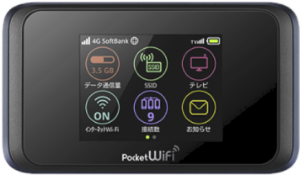
PREMIUM WIFI
FROM $4.2/DAY
- Unlimited Data, No Throttling
- Power bank provided for free!
- 10-hour battery life
- Connect up to 10 Devices
Symptom 3: “Service Outside” or Red Lights
The device screen says “Service Outside” or shows a red antenna icon.
1. Are you underground? Japanese subway stations usually have great signals, but the tunnels between them can be spotty, especially on deeper lines like the Oedo Line or long tunnels through mountains on the Shinkansen.
- The Fix: Wait 5 minutes until you hit the next station.
2. Are you in “Eco Mode”? Many routers have a “Battery Saver” or “Eco Mode” setting accessible via the touchscreen. This aggressively cuts signal power to save juice.
- The Fix: Tap through the settings gear on the router screen. Ensure “High Performance” or “Standard Mode” is on. “Eco” mode can make the signal weak enough to drop out entirely inside thick concrete buildings.
The Nuclear Option: The Factory Reset
Only do this if the device is totally frozen or glitching out.
Every router has a tiny pinhole button, usually labeled “Reset” or just “R.”
- Grab a SIM ejector tool (or an earring).
- With the device powered ON, press and hold that button for 10 seconds.
- The device will reboot and wipe all custom settings.
Warning: This reverts the password to the default one printed on the sticker on the back of the device. If your rental company gave you a custom easy password on a piece of paper, that won’t work anymore. You must use the one on the sticker.
For more information related to troubleshooting, please refer to Japan Wireless FAQ → Troubleshoot
When to Contact Support
If you’ve done the “Deep Sleep” restart and the Factory Reset, and you still have a red light in the middle of Tokyo, the SIM card inside might be damaged or the hardware is fried.
Don’t suffer in silence. Contact your rental company immediately (Line/WhatsApp/Email). Most reputable companies (Japan Wireless, Sakura Mobile, etc.) will express mail a replacement unit to your next hotel, often arriving the next morning.
In the rare event of a device issue, Japan Wireless will get you back online fast and at no cost to you. We will instantly send you a free eSIM to use while you wait for your replacement to arrive.
We will ship a replacement router to you, free of charge.
Conclusion: Quick Fix Summary
Most connectivity issues in Japan are temporary glitches. A simple 15-second “Deep Sleep” restart resolves 90% of connection drops. If your internet works but is crawling at 128kbps, you have likely hit the daily data cap—just wait for the midnight reset (00:00 JST).
If you remain offline after a factory reset, do not wait. Contact your provider immediately; most Japanese rental companies can overnight a replacement unit to your next hotel by morning.